Grok Imagine Prompts: 10 That Work for Images and Clips
Grok Imagine prompts that work: ten copy-paste prompts for images and video, what the model responds to, where it wins, and the real credit cost.
Updated Oct 6, 2026 7 min read
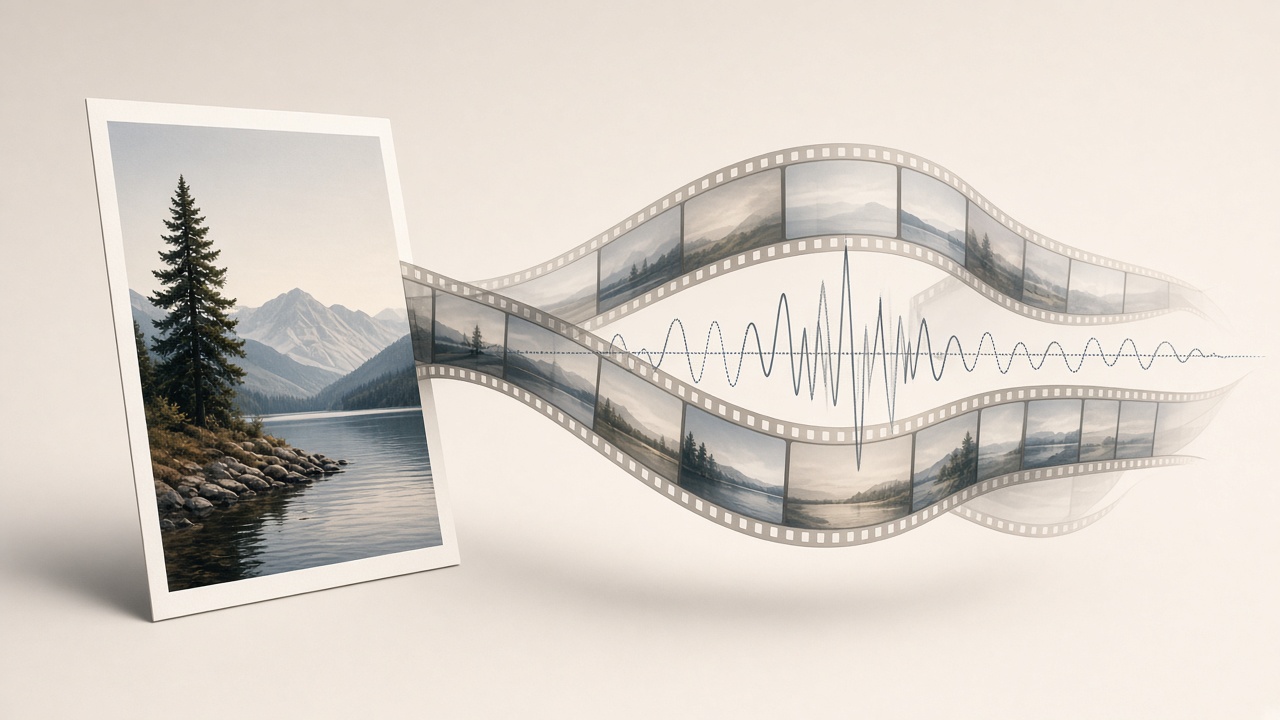
Grok Imagine is xAI's image and video model, and it rewards a specific kind of prompt: plain, visual, scene-by-scene language rather than keyword lists. This guide shows what it responds to, gives ten prompts you can copy straight in, and tells you honestly where it beats the competition and where it doesn't.
There are two models under this name worth separating. Grok Imagine Image 2 makes pictures from text, and Grok Imagine Video 1.5 turns a still photo into a clip with sound. They want different things from a prompt, so this guide covers both.
What Grok Imagine Image 2 responds to
Three traits from hands-on reviews are worth building prompts around. First, its reference-based editing is more precise, holding composition and subject identity while applying targeted changes, and it composites up to 3 reference images into a single coherent result. Second, it can handle text-to-image at extreme typographic density: a full newspaper front page with legible headlines, columns, and captions. Third, it's capable of a photorealistic portrait from a camera-brief prompt, with natural skin, light, and depth of field.
That means the prompt should read like a photo brief or a layout spec, not a mood board. Practically:
- Put the exact words in quotes if you need text on the image — a sign, a label, a headline. The model treats quoted text as copy to render.
- Describe light and lens, not just subject. "50mm lens, soft side window light" does more than "nice lighting."
- Attach a reference photo for edits. Swapping a jacket, changing a background, or keeping a face consistent works better with an image attached than with text alone.
- Don't be afraid of dense layouts. Infographics, posters and multi-line headlines are a real strength, not just a single hero subject on a plain background.
What Grok Imagine Video 1.5 responds to
The video model is built for animating a photo, with sound generated alongside the motion. Grok Imagine Video V1.5 is a frontier-tier image-to-video generation model developed by xAI that animates static images into short clips of up to 15 seconds with natively generated, synchronized audio — including dialogue, lip-sync, sound effects, and ambient music, produced together rather than layered on afterward. It's a fairly recent release: xAI's Grok Imagine Video 1.5, rolled out in preview around late May 2026 and made generally available by mid-June, represents a significant leap forward.
That changes how you write the prompt:
- Describe only what moves, not what's already in the frame. The photo supplies the subject, lighting and framing — your words should cover the camera move, the action, and any dialogue or sound.
- Write dialogue as quoted speech if you want lip-sync, and name ambient sounds ("rain on the window, distant traffic") if you want them in the mix.
- Keep motion simple and physical. A hand picking something up, fabric moving, a head turning — grounded, small actions animate more convincingly than sweeping scene changes.
Do it in Plurel
Both models sit on one credit balance in Plurel, so you can draft the image and animate it in the same session.
For a picture:
- Open the Image chip under the composer, or go straight to plurel.tech/?model=grok-imagine-image-2.
- Pick Grok Imagine 2 from the model list — 2 credits per image.
- Type your prompt (ten examples below), pick an aspect ratio, and generate.
- To change the result, reply in the same chat — "make the sign say CLOSED instead," "same shot but at night" — the chat edits what was just made rather than starting over.
For a clip:
- Open the Video chip, or the Animate tool directly, or go to plurel.tech/?model=grok-imagine-video-1-5.
- Upload the photo you want to animate.
- Choose Grok Imagine Video 1.5 — clips start from 18 credits, priced from about half a credit per second, so a short test clip is cheap to try.
- Write the motion and sound in the prompt box and generate. To continue the shot afterward, use Extend rather than regenerating from scratch.
If you'd rather describe the end result in plain English and have a model plan it out, open Grok 4.7 (1 credit) — it can draft the image and video prompts and show you the credit cost before you commit.
Ten prompts to copy
Images — Grok Imagine 2 (2 credits each)
A hand-painted wooden sign nailed to a fence post reading "TRAIL CLOSED FOR REPAIRS", weathered paint, soft overcast daylight, shallow depth of field
Tests typography rendering on a textured surface.
Editorial product shot of a matte ceramic coffee mug on a marble counter, single side window light, 50mm lens, soft shadow, no props
A clean product photo brief with explicit lighting and lens.
A full magazine front cover for "URBAN ALMANAC", bold masthead, three cover lines, a single photo of a city skyline at dusk, newsstand layout
Tests dense typography and layout planning in one pass.
Portrait of an elderly fisherman mending a net on a dock at golden hour, weathered hands, natural skin texture, 85mm lens, shallow depth of field
A camera-brief portrait prompt for natural skin and light.
Flat lay infographic labeling six garden herbs by name, clean sans-serif captions under each, white background, even studio light
Checks small-text legibility across a repeated layout.
Video — Grok Imagine Video 1.5 (from 18 credits, ~0.5 credits/second)
The camera slowly pushes in as she looks up and says "we made it", wind moving her hair, distant city lights behind her
Dialogue with lip-sync plus a simple camera move, animating a portrait photo.
Steam rises off the coffee as a hand lifts the mug off the counter, soft clink of ceramic, quiet kitchen ambience
Product animation with incidental sound, from a still product shot.
The dog turns its head toward the camera and barks once, leaves rustling behind it, a light breeze
Tests simple physical motion and a single sound cue on an animal photo.
Waves roll in and break against the rocks in the foreground, gulls calling overhead, camera holds static
A static-camera animation that leans entirely on motion and ambient audio.
He turns the page of the book, the camera drifts slightly left, soft page-turning sound, warm lamp light flickering
A quiet, small-motion prompt for a still-life or reading scene.
Where it beats and trails the others
On image-to-video specifically, it's currently near the top of the field: in blind, preference-based testing on the Image-to-Video Arena, Grok Imagine Video 1.5 currently ranks first, with an Elo around 1,330 — roughly 52 points above its own 1.0 release — ahead of Sora 2, Veo 3.1, Seedance 2.0, and Kling in that comparison. It's also fast to generate: most videos rendered in around 60 seconds, making Grok noticeably faster than many newly released AI video models, which matters when you're iterating on a prompt rather than committing to one render.
Where it trails: resolution and moderation. Grok Imagine Video 1.5 tops the image-to-video arena, but its safety record and 720p ceiling complicate the picture — if you need guaranteed 1080p or 4K output, a model built around that is the safer pick.
| Strength | Model to reach for |
|---|---|
| Animating a photo fast, with sound, cheaply | Grok Imagine Video 1.5 |
| Longer clips, first-to-last-frame control | Veo 3.1, Gemini Omni 1.1 Flash |
| Dense typography, tiny legible text in 12 languages | Qwen Image 3 Pro |
| Premium photorealistic portraits | Nano Banana 2 |
For more on why motion sometimes still looks off no matter the model, see Why AI Video Looks Wrong. For a wider comparison of video models, see Best AI Video Generator in 2026.
Tips and troubleshooting
Write dialogue in quotes, not as a description. "She says 'we made it'" lip-syncs; "she says something triumphant" gives the model nothing concrete to sync to.
If text on an image comes out garbled, shorten it. Long sentences in a sign or headline are harder to render cleanly than a short phrase — three to six words is the safe zone.
If a clip's motion looks floaty, name the physical sensation: "picks up the mug, feels its weight" reads differently than just "picks up the mug," and tends to produce more grounded movement.
If you're animating a product or a recognizable face, start from image-to-video rather than asking for a scene from scratch — the still photo anchors the identity, so the prompt only has to describe the movement.
Related: Grok Imagine: Image and Video From xAI, Explained and How to Turn a Photo Into a Video With AI.
Start with one still image and one short prompt, check what comes back, and adjust the words before touching the settings — the prompt is the part worth getting right first.
Questions people ask
- What is Grok Imagine best at?
- Turning a single still photo into a short clip with synchronized sound quickly and cheaply, plus rendering small, legible text inside images. It currently ranks first in blind image-to-video testing against several other major models.
- Does Grok Imagine support text-to-video, not just image-to-video?
- In Plurel, Grok Imagine Video 1.5 is set up as an image-to-video tool, so start with a photo. xAI's broader Grok Imagine product supports additional input modes elsewhere, but the dedicated video model is built around animating a still.
- How much does Grok Imagine cost in Plurel?
- Grok Imagine 2 images cost 2 credits each. Grok Imagine Video 1.5 clips start from 18 credits, priced from about half a credit per second.
- Can Grok Imagine add dialogue and sound to a video?
- Yes. It generates synchronized audio, including lip-synced dialogue, sound effects, and ambient music, in the same pass as the video rather than as a separate step.
- Is Grok Imagine better than Veo or Sora?
- On image-to-video specifically, it currently ranks ahead of Sora 2 and Veo 3.1 in blind preference testing, but it's capped at 720p, so models built for 1080p or 4K are a better fit if resolution matters more than speed and cost.
- Can I edit a picture after Grok Imagine generates it?
- Yes. In Plurel's chat, a follow-up instruction like "same shot but at night" edits the image or clip that was just made, without re-typing the whole prompt.
Sources
Keep going
Higgsfield Alternative: One Credit Balance for Every Model
Looking for a Higgsfield alternative? See what Higgsfield's presets and pricing actually offer, then compare it with Plurel's one balance for every model.
Updated Nov 10, 2026
AI Product Video Prompts: Hooks, Motion, 9:16 Framing
AI product video prompts that convert: hooks, motion, backgrounds, and text-safe 9:16 framing, with 10 copy-paste prompts by product type.
Updated Oct 8, 2026
25 AI Video Ideas for a Small Business (By Industry)
25 AI video ideas for business: copy-paste prompts for restaurants, salons, realtors and gyms, plus which Plurel tool and model to use for each.
Updated Oct 11, 2026
Midjourney Alternative That Also Makes Video (2026 Guide)
Looking for a Midjourney alternative? Compare Nano Banana 2, Seedream 5 and Grok Imagine for image quality, then animate the result in one app.
Updated Oct 6, 2026