How to Make a Slideshow Video With AI (Photos + Music)
Learn how an AI slideshow maker turns photos into a video with music and motion, and the exact steps to build one in Plurel's Slideshow tool.
Updated Oct 5, 2026 6 min read
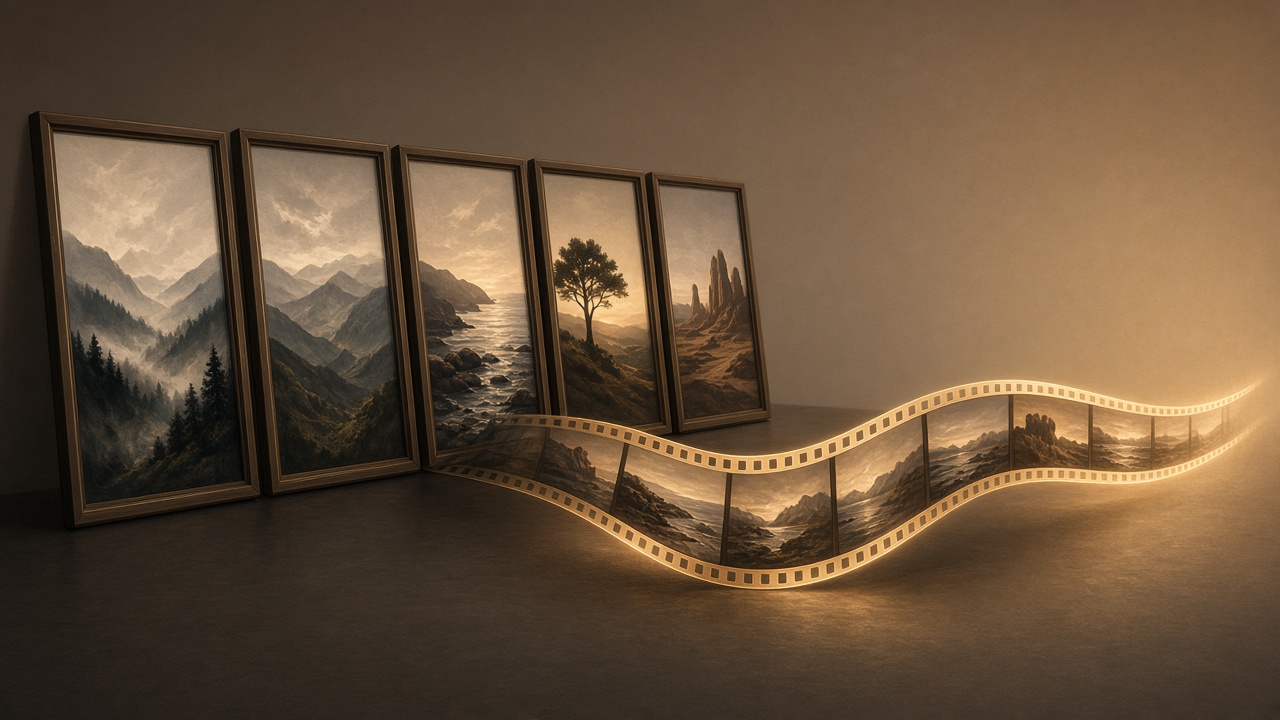
An AI slideshow maker takes the photos already sitting in your camera roll and turns them into one video: it orders them, adds motion so nothing sits frozen, drops in transitions between shots, and lays music underneath. You upload photos, not a prompt, and get a finished clip back. In Plurel this is the Slideshow tool, and it costs nothing to use beyond the price of whichever video model renders the final clip.
What an AI slideshow actually does
A slideshow isn't a generated video. Nothing is invented — every frame comes from a photo you supplied. What the AI adds is motion and timing. The classic technique here is the Ken Burns effect: the Ken Burns effect is a type of panning and zooming effect used in video production from still imagery, named for the documentary filmmaker who made it his signature move. An AI slideshow maker applies a version of this automatically — a slow push into a face, a gentle pan across a landscape — so stills feel alive without you keyframing anything.
On top of the motion, the tool handles three other jobs: transitions between photos (fades, cuts, wipes), pacing (how long each photo holds before the next one appears), and a music or audio track timed to the whole thing. Do all three by hand in a normal video editor and a ten-photo slideshow can take an hour. An AI tool does it in one pass.
Slideshow vs. a generated video clip
These solve different problems, and mixing them up wastes credits.
| Slideshow | Generated video clip | |
|---|---|---|
| Source material | Your own photos | A text prompt, or one photo animated into new motion |
| What changes | Timing, transitions, camera-style pan/zoom, music | Entirely new footage — new angles, new action |
| Best for | Events, recaps, product catalogs, real estate, memorials, portfolios | A scene that doesn't exist yet, or one photo brought fully to life |
| Typical cost in Plurel | Video-model price, from 5 credits (Seedance 2.0 Mini) | Same video-model pricing, from 5–85 credits depending on model and length |
If you have ten real photos from a wedding, a trip, or a product shoot, use the slideshow. If you have one photo and want the subject to actually move, turn its head, or speak, that's a job for Animate or the Avatar tool instead — our guide on turning a photo into a video covers that path.
How to plan a good slideshow (before you touch any tool)
- Pick 8–20 photos. Fewer feels thin, more than 20-25 drags unless you're making something long deliberately.
- Put them in a story order, not upload order: establishing shot first, then the moments that build, then a closer or group shot last.
- Cull anything blurry or duplicate. AI motion makes a soft photo look softer when it's zoomed into — it won't fix bad source material.
- Match aspect ratio to where it'll live — vertical for Stories/Reels/TikTok, widescreen for YouTube or a TV.
- Decide on music mood before you start: upbeat and fast-cut for a highlight reel, slow and spaced for a memorial or an anniversary video.
Do it in Plurel
- Go to plurel.tech and sign in with Google. Sign-up is free, no card required.
- In the chat, click the Video chip under the composer, then open Slideshow — or go straight there with plurel.tech/?model=slideshow.
- Upload your photos in the order you want them to appear. Reorder if the tool lets you drag them, or re-upload in sequence.
- Set the music or audio style, and the pacing/length if the option is offered.
- Pick the video model that renders the final file. For a cheap first pass, Seedance 2.0 Mini (5 credits from) is the lowest-cost option with sound. For a longer or higher-quality render, Plurel Video (20 credits from, 12s 1080p with audio) or Veo 3.1 Fast (20 credits from, 8s 1080p) step the quality up.
- Approve the plan and credit cost shown before it renders — you always see the price first.
- Once it's made, use follow-ups in the same chat to adjust it: ask it to swap the music mood, re-order a section, or lengthen the ending.
- If you want it longer than the first render, use Extend to continue past the current end rather than starting over.
Because the Slideshow tool uses video-model pricing, the exact cost depends entirely on which model and length you choose — our credits explainer breaks down how that pricing works across every video model in the app.
Clean up photos before they go in
A slideshow is only as good as what you feed it. Two quick passes fix most problems:
- Low-resolution or old photos: run them through Upscale (1 credit) first. Our 4K upscaling guide covers when this is worth it versus when it isn't.
- Messy or inconsistent backgrounds: use Remove BG (0.5 credits) so product shots or portraits sit on a clean, consistent background across the whole set — see the background remover guide.
Doing this before the slideshow is cheaper and faster than redoing the whole render afterward.
Music and licensing, briefly
If you're adding your own music track outside the tool rather than using what's generated, know the difference between royalty-free and copyright-free. Royalty-free refers to the right to use copyrighted material without paying a license fee for each use or per volume of sales — it doesn't mean the track has no owner or no rules, just that you pay once (or nothing) up front instead of per play. If you're posting to a platform like YouTube or Instagram, check that whatever track you use is cleared for that platform specifically, since content-matching systems flag plenty of "free" music anyway.
Troubleshooting
The motion feels too slow or too fast. Ask the chat to adjust pacing per photo — a slideshow with 20 photos needs shorter holds than one with 8.
A photo looks stretched or cropped oddly. This usually means its aspect ratio doesn't match the output — crop or pad the source photo first, or pick an output ratio that matches your majority of photos.
The transitions feel jarring. Simple cuts or fades read as more professional than flashy wipes for most personal and business slideshows — ask for a simpler transition style if the first pass feels busy. The right slideshow maker should help evoke emotions, tell a story, and engage the viewer — if a transition style is pulling attention away from the photos themselves, it's working against you.
You want one photo to really move, not just pan. That's outside what a slideshow does — send that single photo to Animate instead, where the model invents new motion for that one image.
One more option: let the chat build it for you
If you don't want to plan the order and music yourself, open Claude Opus 5.5 or GPT-6 Astra in the chat, upload your photos, and describe the occasion and mood. These models can plan the slideshow and the credit cost for you to approve before anything renders — useful when you've got photos from several sources and no clear order in mind yet.
A slideshow is the right tool whenever the footage already exists as photos and the job is pacing, music and motion — not invention. Pick your photos, order them like a story, and let the Slideshow tool handle the rest.
Questions people ask
- What is an AI slideshow maker?
- It's a tool that takes a batch of still photos and turns them into a single video, adding transitions, panning or zooming motion, pacing, and a music track automatically rather than you editing each cut by hand.
- Is an AI slideshow the same as an AI-generated video?
- No. A slideshow animates real photos you already have with camera-style motion and transitions; a generated video clip invents new footage frame by frame from a text prompt or a single image.
- How much does it cost to make a slideshow in Plurel?
- The Slideshow tool itself is free to use; you pay only for the video render, which is priced the same as the video model you pick, starting around 5 credits for Seedance 2.0 Mini or 20 credits for Plurel Video.
- Can I add music to my slideshow?
- Yes, the Slideshow tool lets you set a music or audio style for the finished video, which is generated along with the motion and transitions.
- What if my photos are low resolution or have a messy background?
- Run them through Upscale or Remove BG first so every photo looks consistent before they go into the slideshow.
- Can I keep editing the slideshow after it's made?
- Yes, you can extend it with the Extend tool or ask the chat to change a section, the same way you'd edit any clip in Plurel.
Sources
Keep going

AI Product Video: Amazon and Shopify, Start to Finish
Make an AI product video for Amazon or Shopify from one listing photo: the exact model to pick, what it costs, and the specs each platform needs.
Updated Oct 3, 2026

AI Product Photography: Phone Photo to Store-Ready Shot
Learn AI product photography step by step: shoot on your phone, clean the background, generate a styled scene, and export a store-ready image or clip.
Updated Sep 26, 2026

25 AI Video Ideas for a Small Business (By Industry)
25 AI video ideas for business: copy-paste prompts for restaurants, salons, realtors and gyms, plus which Plurel tool and model to use for each.
Updated Oct 11, 2026

AI Product Video Prompts: Hooks, Motion, 9:16 Framing
AI product video prompts that convert: hooks, motion, backgrounds, and text-safe 9:16 framing, with 10 copy-paste prompts by product type.
Updated Oct 8, 2026