Consistent Character Prompt: Keep One Face Across Images
Learn how to write a consistent character prompt that holds one face across images and video, with anchor descriptions and reference images in Plurel.
Updated Sep 29, 2026 7 min read
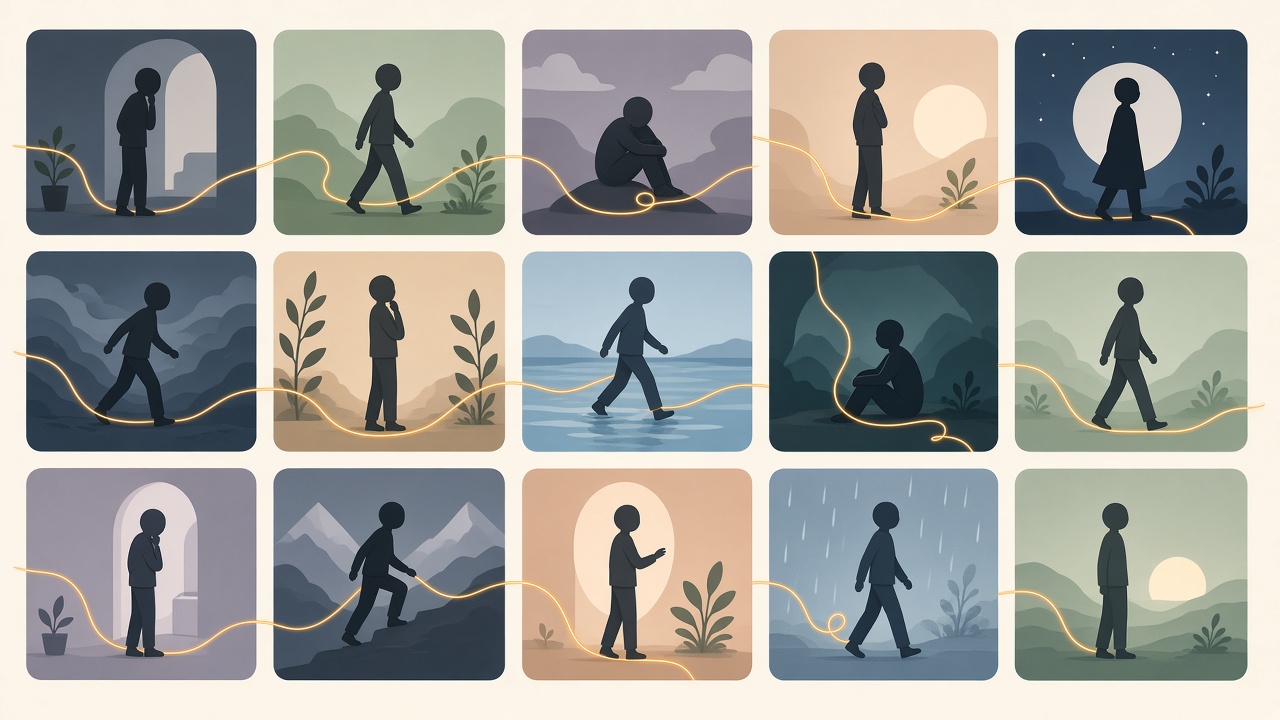
A consistent character prompt is a description you write once — face, hair, build, outfit, a couple of unique markers — and then reuse word-for-word, paired with a reference image, every time you generate that character again. Get the anchor description and the reference image right and the same person can show up in ten images and three video clips without turning into someone else halfway through. Get it wrong and every new generation drifts a little more.
This guide covers the actual mechanics of why characters drift, how to write an anchor description that survives repeated generation, and the edit-not-regenerate habit that matters more than any clever wording. Then it shows the exact steps and models to use in Plurel, image and video.
Why characters drift in the first place
Text-to-image and text-to-video models don't "remember" a character between generations. Each time you submit a text prompt, the model builds the image from scratch, guided only by the words and any reference images you give it that turn. If your wording changes even slightly — "green eyes" one time, "emerald eyes" the next — the model has no reason to treat those as the same detail, and small differences compound into a visibly different face.
Reference images fix most of this because they give the model something to match against instead of only interpreting words. Recent reference-capable models can hold a face from an uploaded photo without any training: one masterclass on Nano Banana 2 describes uploading up to six reference images so "the character stays consistent" across generations. The same logic now applies to video — Seedance 2.5's reference mode accepts "up to 30 reference images, 10 video clips, and 10 audio files" to control character consistency, motion and sound within a single clip.
The single biggest lever for consistency is using a reference image instead of relying on text alone — everything else is a smaller improvement on top of that.
Build the anchor description once
Before you generate anything, write a short paragraph that will not change for the life of the project. This is your anchor. It should cover, in this order:
- Identity basics — age range, build, skin tone.
- Face — eye colour, hairstyle and colour, one or two distinguishing features (a freckle pattern, a scar, a specific eyebrow shape).
- Signature outfit — the clothing that reads as "this character" even in a different pose.
- One unusual marker — jewellery, a tattoo, a prop — something a model is unlikely to invent by accident, which makes it easy to spot if it goes missing.
A practical example from one guide to character prompting packs identity, face and outfit into a single reusable line, something like: "sharp green eyes, freckled cheeks, short auburn hair in braid, leather vest with silver clasps, scar on left jaw." Save that exact sentence somewhere — a notes app, a doc — and paste it unchanged into every future prompt for that character, whether you're generating a new scene or briefing a video model.
Generate the master reference first
Don't try to lock consistency on image one. Generate several variations of your anchor description, pick the cleanest, best-lit, most on-model result, and treat that single image as the master reference from then on. One workflow guide frames this as step one of a repeatable process: generate a clean, close-up portrait "until you get a face you love," which then becomes the master reference for everything after. Every later image or clip should be produced from that photo, not from the text description alone.
Edit, don't regenerate
Once you have a master reference and you need the character in a new scene, the temptation is to write a fresh prompt describing the new scene plus the anchor description again. Resist that. It's the single most common cause of drift.
Instead, use an image-editing or reference-based tool that takes your existing image as an input and changes only what you ask it to change. OpenAI's own image prompting guidance for this generation of models is built around exactly this idea — testing full edit sequences, not just single prompts, because each edit is meant to build on the last without unravelling earlier work. OpenAI's announcement for its newer image model puts the payoff plainly: earlier changes are "more likely to stay consistent" and each new edit "builds on the work you've already done without degrading image quality over time."
That's the whole logic of edit-not-regenerate: every edit is a small, targeted change to a photo that already has the right face, instead of a new roll of the dice.
Do it in Plurel
Plurel puts reference-capable image and video models behind the same chat, so the workflow below uses one credit balance from start to finish.
Step 1 — Generate the master reference
Open the Image chip under the composer, or go straight to Nano Banana 2 (4 credits, best for photorealistic portraits) or Seedream 5 (3 credits, sharp detail and strong prompt accuracy). Type your anchor description as a clean, well-lit three-quarter portrait prompt. Generate a few, pick the best one — that's your master reference.
If your project needs dense text or a multilingual layout in the same image (packaging, a sign, a poster the character is holding), Qwen Image 3 Pro (2.5 credits) handles small legible text in 12 languages better than most general models.
Step 2 — Reuse it by editing, not re-describing
For every new scene, don't start a new text-to-image generation. Instead:
- Open Edit at https://plurel.tech/?model=image-edit (same credit price as the image model you pick, e.g. 4 credits on GPT Image 2.5).
- Upload the master reference (or the last image you approved).
- Type only the change: "same character, now standing in a neon-lit street at night, same outfit."
- Approve, then repeat for the next scene from whichever image you just approved.
GPT Image 2.5 (3.5 credits) is built for exactly this kind of targeted edit and reference fidelity. In Plurel's own chat, you can also just say "same monkey, now wearing a hat" as a follow-up to a picture you just made — the chat edits what was just generated rather than starting over.
Step 3 — Take the character into video
Once you have a reference image you're happy with, turn it into a clip with Animate at https://plurel.tech/?model=animate, which does image-to-video from your reference photo instead of generating a character from text. For longer or multi-shot sequences, Seedance 2.5 (from 30 credits) is the strongest option for character consistency in video: it can take reference images, clips and style references together and hold the character's identity across shots up to 30 seconds. Kling 3.0 (from 55 credits) is a solid alternative when you want cinema-quality motion with an optional end-frame to control how the shot resolves.
To keep going, use Extend at https://plurel.tech/?model=video-extend to continue a clip past its end, or just say "continue that clip" in chat — it picks up from the last frame rather than regenerating the character.
A quick model picker
| Need | Model | Credits | Why |
|---|---|---|---|
| Photorealistic master reference | Nano Banana 2 | 4 | Built for portraits and complex scenes |
| Fast iteration on poses/scenes | Plurel Lite | 0.5 | Cheap for testing before committing |
| Targeted edits to an existing image | GPT Image 2.5 | 3.5 | Sharpest edits, strong reference fidelity |
| Text-heavy scenes (signs, products) | Qwen Image 3 Pro | 2.5 | Legible small text, 12 languages |
| Multi-shot video with the same character | Seedance 2.5 | from 30 | Strongest reference control across shots |
| Single cinematic clip | Kling 3.0 | from 55 | Cinema-quality motion, end-frame control |
Troubleshooting
The face is close but not quite right. Don't regenerate from text — open Edit, upload the drifted image, and describe only the correction: "same character, but eyes slightly more green, same everything else." Small, targeted edits fix drift better than a fresh generation.
Fine details keep changing (jewellery, tattoo pattern). This is a known limit even on strong reference models — one storyboard workflow guide notes that small details like jewellery patterns or tattoo specifics can still vary even with a solid reference image. Put the detail in the anchor description explicitly every time and check it after each generation rather than assuming it carried over.
The outfit changes between scenes. Make the outfit part of the anchor sentence, not a separate detail you add per-scene, and when you move to a new scene, edit the reference image rather than describing the outfit again from scratch.
Video clips don't match the image character. Always generate the video from the approved reference image (via Animate or a reference-mode video model) rather than typing the character description straight into a text-to-video prompt.
If you're building a recurring character for content — a virtual presenter or an AI influencer — the workflow above is the same one used for keeping the same character across AI images and for building an AI influencer that stays consistent. For animating that reference into a full clip, see how to turn a photo into a video with AI and, if you're choosing between video models for the job, Seedance 2.5 prompts for image-to-video.
One anchor description, one master reference image, and edits instead of regenerations — that's the whole trick.
Questions people ask
- What is a consistent character prompt?
- It's a prompt written so the same character — same face, hair, outfit and build — appears correctly across multiple images or video shots, usually by pairing a fixed written description with a reference image rather than re-describing the character from scratch each time.
- Do I need to train a LoRA to keep a character consistent?
- No. Modern reference-image models like Nano Banana 2, GPT Image 2.5 and Seedance 2.5 hold identity from uploaded reference photos without any training, which is faster and works for one-off projects.
- How many reference images should I use?
- One clear, well-lit reference is enough to start; adding a second angle (profile or three-quarter) helps models that support multiple references lock the face down more tightly across poses.
- Why does my character's face change slightly between images?
- Small drift is normal with text-to-image generation; the fix is to edit the previous image instead of generating a new one from text, and to keep the anchor description identical every time.
- Can I keep a character consistent in video, not just images?
- Yes — generate or upload a reference image of the character first, then use an image-to-video or reference-controlled video model so each clip starts from the same face and outfit instead of being generated fresh from text.
Sources
Keep going

25 AI Video Ideas for a Small Business (By Industry)
25 AI video ideas for business: copy-paste prompts for restaurants, salons, realtors and gyms, plus which Plurel tool and model to use for each.
Updated Oct 11, 2026
How to Make an AI Influencer (and Keep Her Consistent)
Learn how to make an AI influencer with a consistent face across photos and video, then build one step by step in Plurel.
Updated Sep 19, 2026

AI Product Photography: Phone Photo to Store-Ready Shot
Learn AI product photography step by step: shoot on your phone, clean the background, generate a styled scene, and export a store-ready image or clip.
Updated Sep 26, 2026
AI Video Ad Generator: TikTok/Reels Ad in 10 Minutes
Learn how to use an AI video ad generator to turn one product photo into a 9:16 TikTok or Reels ad in about ten minutes, with real costs.
Updated Sep 20, 2026