How to Keep the Same Character Across AI Images
Learn how consistent character AI works: reference images, prompt anchors, and editing instead of regenerating. Step-by-step in Plurel.
Updated Sep 27, 2026 6 min read
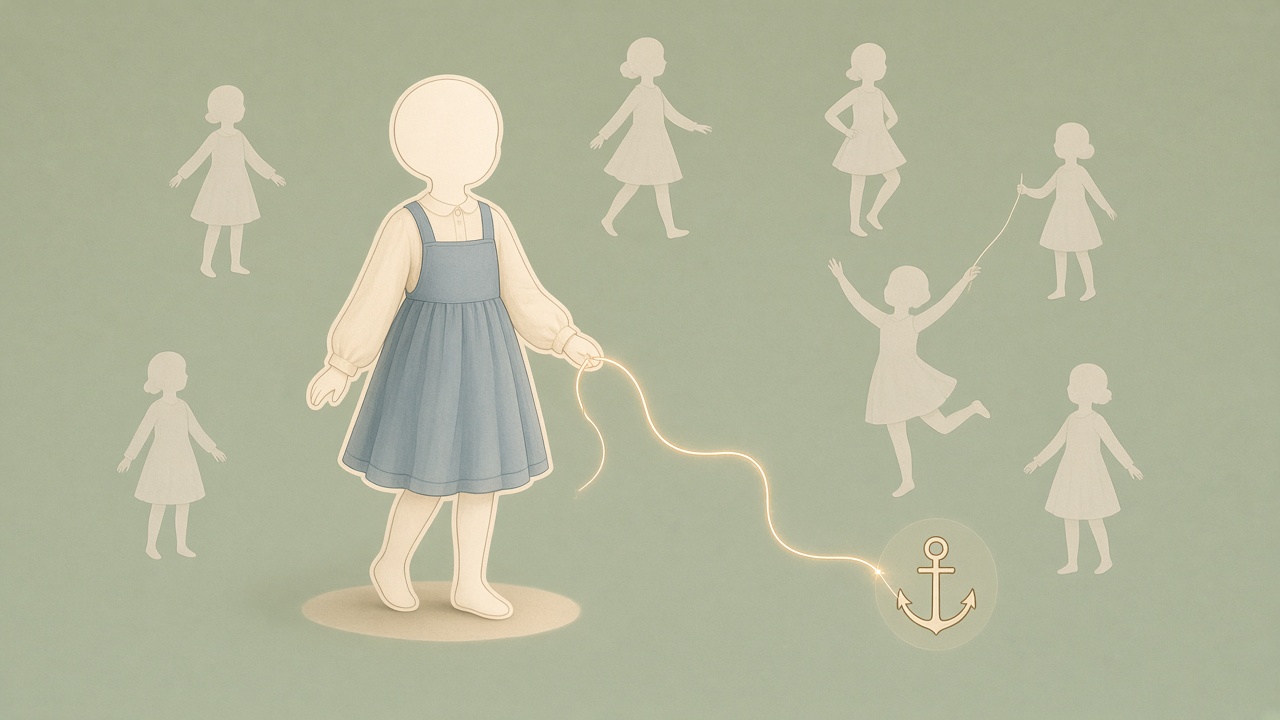
Consistent character AI means getting the same face, hair, build and outfit to show up across several separate image generations, instead of a new-looking stranger every time you type a new scene. The fix isn't a special "consistency mode" — it's three habits: anchor the character with a reference image, repeat the same written description every time, and edit forward from one picture instead of starting fresh each time. Here's how each piece works, and exactly where to click in Plurel.
Why AI characters drift in the first place
Most image models don't remember anything between generations. Each picture is built fresh from whatever text (and sometimes image) you feed it that time, using a random starting point under the hood. Change a few words in the prompt, or run it again with no changes at all, and you can get a different-looking person, because nothing is forcing the model to reuse the same face.
The model isn't "forgetting" your character — it never had a persistent character to begin with, unless you gave it one to copy. That's the whole problem consistent-character techniques solve: you have to supply the thing to be consistent with, every time.
The three techniques that actually work
1. Reference images
The single biggest lever is giving the model a picture of the character to copy from, rather than describing them in words alone. Identity consistency can be maintained by combining a stable reference image with consistent prompt constraints. Quality matters here: a high-resolution image with clear, front-facing lighting works best, and where you can, 2-3 images from different angles significantly improve consistency over a single reference.
If you don't have a photo yet, generate one first and treat it as the master reference for everything that follows — a face and outfit you'll reuse rather than reinvent.
2. Prompt anchors
A prompt anchor is a fixed block of text describing the character — name, age, hair colour and style, eye colour, build, clothing, any distinguishing marks — that you paste into every prompt, word for word. General-purpose character tools do this automatically by letting you upload reference photos once and call the character by name in every prompt, no training required. You can do the same manually: write the description once, save it somewhere, and reuse it exactly rather than re-describing the character from memory each time (which is where wording drift creeps in).
If you're generating more than one character in the same scene, give each one its own anchor and keep them separate in the prompt. Develop separate, in-depth descriptions for each character and keep separate prompt templates for solo generation, and when they appear together, place characters carefully to prevent overlap problems that can result in the AI merging features.
3. Edit instead of regenerate
This is the one people miss. Once you have a picture of your character you're happy with, the fastest way to get a new scene isn't a brand-new prompt — it's a follow-up instruction on the same picture. Guidance on keeping characters consistent inside a chat interface puts it plainly: to maintain consistency, generate your character and all subsequent images within the same chat thread, treating the first good result as an anchor for everything after it.
| Technique | What it does | Use it when |
|---|---|---|
| Reference image | Gives the model a face/outfit to copy | You already have one good picture (or photo) of the character |
| Prompt anchor | Repeats the same written description every time | You're generating from text only, or adding a second character |
| Edit, don't regenerate | Changes the existing picture instead of making a new one | You want the same picture in a new scene, pose, or lighting |
Do it in Plurel
Here's the actual click-path, using all three techniques together.
- Open the Image tool — the chip under the composer marked Image, or go straight to https://plurel.tech/?model=image.
- Pick a model built for this. GPT Image 2.5 (3.5 credits) is the app's pick for edits, references and complex prompts, and Nano Banana 2 (4 credits) is the pick for photorealistic portraits and detailed scenes. Either is a solid first stop; open Nano Banana 2 directly at https://plurel.tech/?model=nano-banana-2 or GPT Image 2.5 at https://plurel.tech/?model=gpt-image-2-5.
- Write the full character description once — this is your prompt anchor. Be specific: name, age, hair, eyes, build, outfit, one or two distinguishing details. Generate the picture.
- Don't start a new prompt for the next scene. Stay in the same chat and type a follow-up, e.g. "same woman, same face and outfit, now standing on a rainy street at night." Because the chat edits what was just made, it treats the picture you already approved as the reference — this is the built-in version of "edit instead of regenerate."
- For a small, specific change — add a hat, swap the background, relight the shot — open the Edit tool directly on that image at https://plurel.tech/?model=image-edit. It costs the same as generating a picture with whichever model you're using (0.5–4 credits).
- For freehand fixes — repainting just the jacket, or just the background, while leaving the face untouched — use Paint (https://plurel.tech/?model=paint) to mask the area and regenerate only that part.
- Have an existing photo or drawing of the character from outside Plurel? Attach it in the chat and ask one of the tool-using models — Claude Opus 5, Claude Sonnet 5.5 or GPT-6 Astra — to plan a new scene with "this character." You'll see the plan and its credit cost before anything generates. Open Claude Opus 5 at https://plurel.tech/?model=claude-opus-5-5.
- Building a full storyboard? Repeat step 4 for each new scene in the same thread, keeping the anchor description unchanged and only swapping the setting, pose or action in each follow-up.
- Finishing for print or a bigger canvas? Run the final picture through Upscale (https://plurel.tech/?model=upscale, 1 credit) once you're happy with the character — do this last, after consistency is locked in, not before.
Taking it to video
If the same character needs to move, animate the consistent image with Animate (https://plurel.tech/?model=animate) rather than describing the character fresh in a video prompt. To keep going past the first clip, use Extend (https://plurel.tech/?model=video-extend) or Video edit (https://plurel.tech/?model=video-edit) on the same clip instead of generating a new one — the same "edit, don't regenerate" logic applies. For running characters across many scenes and dialogue, the guide on making an AI influencer goes deeper on keeping one face consistent across a whole content series.
Troubleshooting
Face keeps subtly changing even with a reference? Reduce how many things you change per prompt — swap only the setting or only the pose, not both plus lighting plus outfit in one go. Big compound changes give the model more room to drift.
Two characters keep blending into one? Keep each character's full anchor description in its own sentence, and describe their positions relative to each other ("on the left," "behind her") so the model doesn't merge their features into a single figure — a pattern noted directly in character-consistency guidance for keeping multiple characters distinct.
Started a new chat by accident and lost the thread? Re-upload your reference image and paste your saved prompt anchor into the new conversation — it won't be automatic, but it recovers most of the consistency.
Not sure which image model to try first? The comparison in Best AI Image Generator in 2026 and the deeper look in Nano Banana 2 Explained both cover which model handles portraits and edits best right now.
A consistent character isn't a model setting you turn on — it's a reference image, a repeated description, and a habit of editing forward instead of starting over.
Questions people ask
- What does "consistent character AI" mean?
- It means getting an AI image or video model to produce the same-looking character — same face, hair, build and outfit — across multiple separate generations, instead of a new-looking person each time.
- Do I need to train a custom model to keep a character consistent?
- No. Reference images plus a fixed written description (a prompt anchor), combined with editing an existing picture instead of generating a fresh one, gets you most of the way without any training step.
- Which model in Plurel is best for consistent characters?
- Nano Banana 2 (4 credits) is built for photorealistic portraits and complex scenes, and GPT Image 2.5 (3.5 credits) is specifically strong at edits and working from a reference image, so either is a good starting point.
- Why does my AI character's face change between images?
- Most image models generate each picture from scratch based only on the text prompt, so small wording changes or a new random seed produce a different face unless you anchor it with a reference image or edit the same picture forward.
- Can I keep a character consistent in video too, not just images?
- Yes — animate your consistent character image with the Animate tool, then use Extend or Video edit to continue or change that same clip rather than generating a new one from scratch.
- Does editing an existing picture cost less than generating a new one?
- In Plurel, editing costs the same as generating a picture with that model, but it's often more efficient because you get a usable, on-character result in fewer attempts.
Sources
- How to Create Consistent Character Campaign Images With Nano Banana 2
- How to Create Consistent Characters with AI (2026 Guide)
- OpenAI Solved Character Consistency in ChatGPT Image Creation
- How to Keep AI Characters Consistent Across Multiple Images and Scenes
- The Ultimate Guide to Keeping Your Character Consistent in AI
Keep going
How to Make an AI Influencer (and Keep Her Consistent)
Learn how to make an AI influencer with a consistent face across photos and video, then build one step by step in Plurel.
Updated Sep 19, 2026
Best AI Image Generator in 2026: 5 Models Compared
The best AI image generator in 2026 depends on the job. Compare Nano Banana 2, Seedream 5, Grok Imagine 2, GPT Image 2.5 and Qwen Image 3 Pro on cost and use.
Updated Sep 23, 2026
25 AI Video Ideas for a Small Business (By Industry)
25 AI video ideas for business: copy-paste prompts for restaurants, salons, realtors and gyms, plus which Plurel tool and model to use for each.
Updated Oct 11, 2026
AI Product Photography: Phone Photo to Store-Ready Shot
Learn AI product photography step by step: shoot on your phone, clean the background, generate a styled scene, and export a store-ready image or clip.
Updated Sep 26, 2026