How to Make a Phone Wallpaper With an AI Wallpaper Generator
Learn how an AI wallpaper generator picks the right phone resolution, builds a strong prompt, and turns it into a wallpaper in Plurel, step by step.
Updated Oct 11, 2026 6 min read
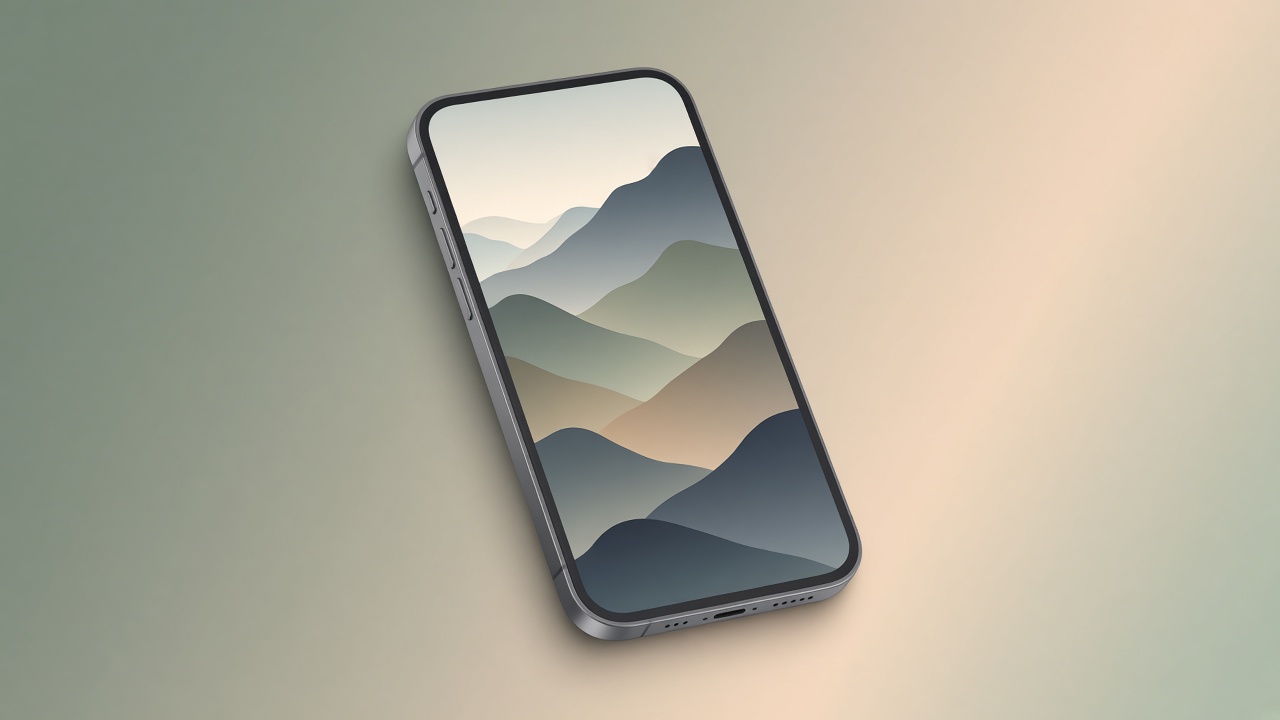
An AI wallpaper generator turns a text prompt into a custom phone or desktop background in any style — photoreal, anime, abstract, minimal — sized correctly for your screen. The two things that actually matter are getting the pixel dimensions right so nothing gets cropped weird, and writing a prompt that describes a scene which still reads well as a background behind app icons. Here's how to do both, then exactly how to generate one in Plurel.
Why most "AI wallpapers" look wrong on your actual phone
The most common mistake isn't the art style, it's the aspect ratio. A square or widescreen image generated by default and then stretched to fit a phone screen gets cropped at the top and bottom, cutting off exactly the part of the image you picked it for.
Phones are tall and narrow, so your wallpaper needs to be generated that way from the start, not cropped into shape afterward. Modern iPhones sit around a 19.5:9 ratio rather than the 9:16 most people assume.
Pick the right size first
Before you touch a prompt, know your target resolution. Current iPhones range from the compact SE up to the Pro Max, and Android flagships run even taller and higher-res:
| Device | Resolution | Aspect ratio |
|---|---|---|
| iPhone 16 / 15 / 14 | 1179 × 2556 px | 19.5:9 |
| iPhone 16 Pro | 1206 × 2622 px | 19.5:9 |
| iPhone 16 Pro Max | 1320 × 2868 px | 19.5:9 |
| iPhone SE (3rd gen) | 750 × 1334 px | 9:16 |
| High-end Android | ~1440 × 3120 px | ~19.5:9 |
Most iPhones use a 19.5:9 aspect ratio. Standard models like the iPhone 16 and iPhone 15 need 1179 × 2556 pixels, Pro models need 1206 × 2622 or 1290 × 2796, and the largest Pro Max screens need 1320 × 2868, according to sizehippo's 2026 iPhone wallpaper chart. If you don't know your exact model or want one image that works everywhere, 1290×2796 px is the safest choice, matching the largest common screen in the lineup, and iOS will scale it down cleanly on smaller models without visible quality loss, per imresizer's size guide. More broadly, most modern iPhones need an image between 1170 × 2532 pixels and 1290 × 2796 pixels for a sharp, full-screen fit, per dimensioncan's size breakdown.
You don't have to remember any of this when you generate in Plurel — the Phone wallpaper tool sets the correct vertical frame automatically. It matters mainly if you're generating a general image elsewhere and need to know what to crop to.
What makes a wallpaper prompt work
A wallpaper lives behind icons, widgets, and a clock. The best ones leave visual breathing room instead of packing detail edge to edge.
- Say the subject and where it sits. "A single pine tree on a snowy ridge, bottom third of frame" reads better as a background than a tree dead center.
- Name the palette. Colors like "muted teal and rust orange" or "black and gold" keep the result from clashing with your icons.
- Pick a mood word. Calm, moody, dreamy, neon, and minimal all push the model toward a coherent look rather than a busy one.
- Mention negative space. Ask for "empty sky at the top" or "dark gradient at the bottom" if you want room for a clock or widgets.
- State the format. Add "vertical, phone wallpaper, no text" to stop the model from trying to center a composition for a square or landscape crop.
Styles that hold up well on a lock screen
Flat, high-contrast styles tend to survive the icon grid better than busy photoreal scenes: solid-color gradients, line art, low-poly landscapes, soft watercolor, and simple geometric patterns all stay legible once apps are laid over the top. Dense photoreal scenes still work, but keep the most detailed part of the image in the middle third of the frame, since that's the zone your icons and dock won't cover.
Do it in Plurel
Plurel has a dedicated wallpaper tool so you don't have to fight aspect ratios manually.
- Sign up free at plurel.tech with Google — no card required.
- From the chat screen, tap Image in the row under the composer, then open Phone wallpaper (or jump straight in at plurel.tech/?model=phone-wallpaper). For a desktop background instead, use Desktop wallpaper, which generates widescreen.
- Pick a model. Pricing is per image, not a flat fee, so match the model to how much polish you need:
- Plurel Lite — 0.5 credits, fast, good for trying five ideas before committing.
- Plurel Pro — 1.5 credits, sharper 4K output for a finished look.
- Qwen Image 3 Pro — 2.5 credits, the one to use if you want a short phrase or date rendered as legible text on the wallpaper.
- Seedream 5 — 3 credits, strong detail and prompt accuracy.
- Nano Banana 2 — 4 credits, best for photoreal scenes and complex lighting.
- Type your prompt using the structure above, then generate.
- Refine by follow-up, right in the same chat — say "make the sky darker" or "move the mountain lower" and it edits the wallpaper you just made instead of starting over.
- Upscale if needed. If you generated at a lower resolution and need the full Pro Max size, run it through Upscale (1 credit) to push it to 4K before saving.
- Download and set it as your lock screen or home screen.
Pictures on a free Plurel account refill every 5 hours, so you can run through several wallpaper drafts — different styles, different models — without spending credits, and only pay when you pick a premium model like Nano Banana 2 or need extra beyond the refill.
A few prompts to start from
A single red torii gate on a foggy lake, minimal, muted blue-grey palette, vertical phone wallpaper, empty sky at top, no text
Calm, minimal landscape — good on Plurel Lite or Plurel Pro.
Abstract liquid gradient, deep purple to burnt orange, soft grain, vertical 9:19.5, no text, no objects
Safe, icon-friendly background — any model, cheapest on Plurel Lite.
Low-poly mountain range at sunset, geometric style, dark navy and coral, vertical phone wallpaper, detail concentrated in middle third
Stylized and legible behind icons — Seedream 5 or Plurel Pro.
Troubleshooting
Image looks cropped oddly on my phone: you generated at the wrong ratio. Use the Phone wallpaper tool instead of the general Image tool, or match the resolution table above and resize before setting it.
Important part of the image is hidden behind the clock or dock: regenerate with "empty space at top and bottom, subject in the middle third" added to the prompt.
Text in the wallpaper looks garbled: switch to Qwen Image 3 Pro, which is built for legible small text, instead of a general-purpose image model.
Looks a little soft on a Pro Max screen: run it through Upscale before saving — the base generation may be lower-res than the panel.
Colors clash with my icon theme: regenerate with a named palette instead of leaving color choice to the model — "muted sage green and cream" gives far more consistent results than "nice colors."
If you want to compare image models before picking one for a batch of wallpapers, see Best AI Image Generator in 2026 or the Nano Banana 2 guide for photoreal prompt examples. For the mechanics of how these models build an image in the first place, see How AI Image Generators Work. If you'd rather upscale an old photo into a wallpaper than generate one from scratch, the 4K upscaling guide covers that path.
Making a set instead of one wallpaper
If you want a matching lock screen and home screen, or a set for a theme (seasonal, a color story, a running series), generate the first one, then use follow-up messages in the same chat to produce variations: "same composition, but at night," or "same style, swap the mountain for a forest." This keeps the palette and composition consistent across the set instead of re-rolling a totally different image each time, since the chat is editing what it just made rather than starting fresh.
A wallpaper that's sized right and lightly composed beats a busy, high-detail one every time — get the ratio correct first, then spend your credits on style.
Questions people ask
- What size should an AI wallpaper be for my phone?
- Most modern iPhones need roughly 1179×2556 to 1320×2868 pixels at a 19.5:9 ratio, and 1290×2796 works as a safe size across most recent models. Plurel's Phone wallpaper tool sets the correct vertical frame automatically so you don't need to calculate this.
- Is an AI wallpaper generator free to use?
- Plurel is free to sign up with Google and no card, and pictures (including wallpapers) refill every 5 hours on a free account. Premium models like Nano Banana 2 or extra generations beyond the refill use credits.
- Which AI model makes the best wallpapers?
- Plurel Lite is fastest for testing ideas at 0.5 credits, Nano Banana 2 is best for photoreal detail at 4 credits, and Qwen Image 3 Pro is the one to use if the wallpaper needs legible text.
- Can I edit an AI wallpaper after generating it?
- Yes. In Plurel you can follow up in the same chat with instructions like "make the sky darker" and it edits the wallpaper you just made instead of starting over.
- Can I make a desktop wallpaper the same way?
- Yes, Plurel's Desktop wallpaper tool uses the same prompt approach but generates a widescreen frame instead of a vertical one.
- Why does my AI wallpaper look cropped on my phone?
- It was likely generated at a square or landscape ratio and then stretched or cropped to fit. Generating directly in a phone wallpaper tool avoids this because the image is built tall from the start.
Sources
Keep going
Negative Prompt Guide: What to Leave Out of AI Images
What a negative prompt is, which AI image models still honor one, and the exact wording that avoids blurry hands, watermarks, and extra limbs.
Updated Oct 12, 2026
How AI Image Generators Work: Diffusion vs Autoregressive
How AI image generators work: diffusion's noise-to-picture steps vs autoregressive token-by-token models, and what each means for your prompts.
Updated Oct 10, 2026
Midjourney Alternative That Also Makes Video (2026 Guide)
Looking for a Midjourney alternative? Compare Nano Banana 2, Seedream 5 and Grok Imagine for image quality, then animate the result in one app.
Updated Oct 6, 2026
Best AI Image Generator in 2026: 5 Models Compared
The best AI image generator in 2026 depends on the job. Compare Nano Banana 2, Seedream 5, Grok Imagine 2, GPT Image 2.5 and Qwen Image 3 Pro on cost and use.
Updated Sep 23, 2026