How to Make an AI Talking Avatar From One Photo
Learn how an AI talking avatar works, then turn one photo and a script into a lip-synced talking video using Plurel's Avatar tool, step by step.
Updated Oct 1, 2026 6 min read
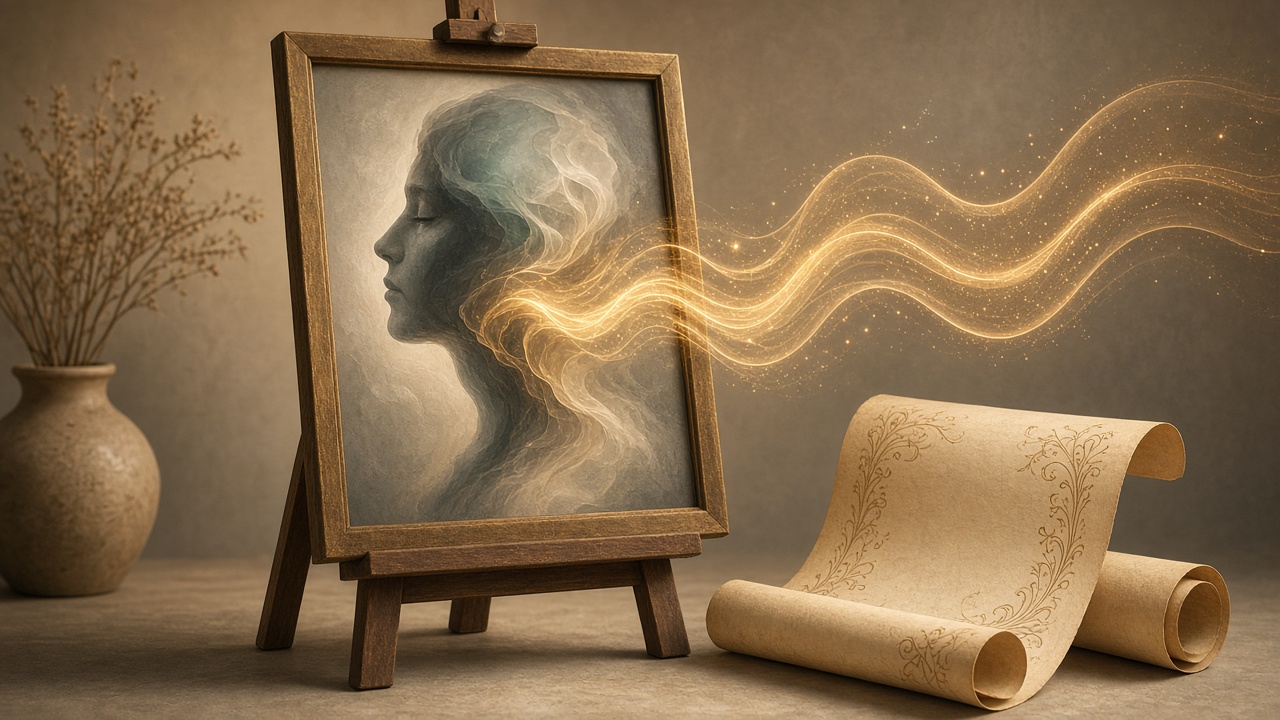
An AI talking avatar is a video of a person — usually made from a single photo — speaking a script with their lips, face, and head moving in sync with the words. You don't film anything. You upload a photo, give it a script, and the AI animates the face and generates the voice to match. Here's how the technology works and exactly how to build one in Plurel.
How an AI talking avatar actually works
The process behind every talking avatar tool follows the same three steps: analyze the face, generate speech, then map the speech onto the face frame by frame. You can create a talking avatar from a photo using a single clear portrait image, and the AI analyzes the face in your image and animates it to match your script or audio. The model identifies where the eyes, mouth, jaw, and head sit in the photo, then builds motion on top of that fixed geometry — it isn't redrawing a new face each frame, it's animating the one you gave it.
The lip-sync layer is what makes or breaks the result. The AI breaks your script (or an audio track) into phonemes — the individual speech sounds — and maps each one to a mouth shape, then blends those shapes smoothly so the mouth doesn't snap between positions. That's why a clean, front-facing mouth in your source photo matters more than almost anything else about the image.
Photo avatars generate realistic AI avatars from a single photo: you upload one front-facing photo and the tool turns that headshot into a talking avatar that speaks your script with natural expression. The field moved fast this year — an AI avatar is now understood as a photorealistic digital human that a model generates from a single photo or a short clip, and the technology shifted in 2026 from pre-rendered talking-head videos toward faster, near-instant rendering. For most practical use — ads, explainers, updates — you still don't need real-time; you need one good clip you can publish.
What makes a photo and script "avatar-ready"
The single biggest failure point is a bad source photo, not a bad script. Before you touch any tool, check your photo against this list:
- Face forward or close to it — a slight three-quarter angle is fine, profile shots are not.
- Mouth closed or gently relaxed, not mid-laugh or covered by a hand, mic, or hair.
- Even, front-facing light — hard side shadows confuse the face-mapping step.
- Nothing obscuring the chin or neckline (scarves, high collars, hands near the face).
- Reasonably high resolution — a blurry source photo produces a blurry, mushy mouth.
For the script: write it the way you'd actually say it out loud, in short sentences. Avatars read punctuation as pacing — commas as breaths, periods as stops — so over-punctuate rather than under-punctuate if you want natural pauses. Keep it to roughly 15–20 words per sentence; long run-on sentences make the lip-sync rush to keep up.
Where talking avatars actually get used
| Use case | Why an avatar fits | Typical length |
|---|---|---|
| Product explainer | One "presenter" walks through features without a filming day | 15–30 sec |
| Social or founder update | Turns a static photo into a personal-feeling message | 10–20 sec |
| Short-form ad / hook | A talking face outperforms text-on-screen for stopping scroll | 6–15 sec |
| Course or onboarding clip | Consistent presenter across many short lessons | 15–30 sec |
| Multilingual version of an ad | Same photo, new script, new language, no reshoot | 10–20 sec |
None of this replaces a real spokesperson for high-stakes, long-form video — but for short, repeatable content, it removes the camera entirely.
Do it in Plurel
Here's the exact path, start to finish.
- Open the Avatar tool. From the row under the composer, or go straight to Avatar.
- Upload your photo. Use the checklist above — front-facing, well-lit, mouth relaxed. If the background is messy, run it through Remove BG first (0.5 credits), or clean it up with Edit (same price as a picture by model).
- If the photo is low-res, push it through Upscale first (1 credit) — a sharper source photo gives the lip-sync model cleaner edges to animate.
- Write or paste your script. If you don't have one yet, open Chat and ask GPT-5.6 Luna (0.1 credits) for a quick 15-second draft, or Claude Sonnet 5.5 (1 credit) if you want a more polished, on-brand script with a few options to choose from.
- Pick the video model behind the clip. The Avatar tool runs on the app's video models, so choose based on what you need (see table below), then approve the credit cost shown before it renders.
- Generate, then refine by follow-up. If the pacing is off or a word got swallowed, don't start over — tell the chat what to fix ("slow down the second sentence," "make the smile warmer") the same way you'd edit any clip in Plurel.
- Export or extend. Happy with it? It's saved to your history. Need it longer? Send it to Extend to continue past the end rather than regenerating from scratch.
Which model to pick for the avatar clip
| Model | Best for avatars because | Open it |
|---|---|---|
| MiniMax H3 | 2K output with native stereo sound, built for photo-to-speaking-video | open |
| Kling 3.0 Turbo | Cinematic clips with lip-synced dialogue, 720p or 1080p, fast | open |
| Seedance 2.5 | Strongest reference control, keeps the face consistent if you make a series | open |
If you're making one quick clip, Kling 3.0 Turbo's speed is the easiest default. If you're building a recurring presenter across several videos, Seedance 2.5's reference control keeps the same face recognizable clip to clip — see the Seedance 2.5 guide for how reference control works.
Troubleshooting and tips
Mouth looks mushy or the words run together: go back to the source photo — a slightly blurry or low-res image is the most common cause, not the model. Upscale first and re-run.
Head barely moves, looks stiff: this usually means the source photo was too tightly cropped or the pose was already extreme. A shoulders-up photo with a neutral, slightly-turned pose animates more naturally than a dead-center passport-style shot.
Script timing feels rushed or slow: rewrite with shorter sentences and real punctuation rather than trying to control pacing with instructions alone — the model reads your sentence structure as timing cues.
Need the same avatar in a different language: keep the photo, rewrite the script in the target language, and regenerate — no reshoot needed, which is the main practical advantage of this whole workflow over filming a real presenter.
Want it to feel less "stock": avoid stiff studio headshots. A natural photo — slightly off-center, a hint of a smile, real light — reads as far less synthetic than a perfectly centered corporate portrait.
For more on getting a photo to move convincingly at all (not just talk), see How to Turn a Photo Into a Video With AI. If the avatar is going into a paid campaign, pair this with AI Video Ad Generator: TikTok/Reels Ad in 10 Minutes. And if your source photo needs work before any of this, start with AI Headshot Generator: Turn a Selfie Into a LinkedIn Photo or AI Background Remover: How to Remove a Photo Background.
One photo, one script, one tool — and you've got a presenter who never needed a camera.
Questions people ask
- What photo works best for an AI talking avatar?
- A sharp, front-facing photo with even lighting, the mouth closed or relaxed, and nothing covering the chin or lips. Shoulders-up portraits animate more naturally than full-body shots or extreme angles.
- Can I use my own voice for a talking avatar?
- In Plurel, you type or paste a script and the Avatar tool generates the voice and lip sync together; there is no separate voice-cloning upload step described in the app's current tools.
- How long can an AI talking avatar video be?
- Length depends on which video model powers the clip. Models like Kling 3.0 Turbo run 3 to 15 seconds, while MiniMax H3 and Seedance 2.5 can run longer, so pick the model based on how long your script needs.
- Is an AI talking avatar good enough for a real ad or explainer?
- Yes, for short-form content like social ads, product explainers, and company updates. It will not replace a full studio production, but it removes the camera, studio, and actor entirely for quick turnarounds.
- Does the avatar's face stay consistent if I make more than one clip?
- Within one photo and one session it stays consistent; for a recurring on-screen character across many videos, pair the Avatar tool with a consistent-character workflow so the same face carries from clip to clip.
Sources
Keep going
How to Make an AI Influencer (and Keep Her Consistent)
Learn how to make an AI influencer with a consistent face across photos and video, then build one step by step in Plurel.
Updated Sep 19, 2026
AI Product Video: Amazon and Shopify, Start to Finish
Make an AI product video for Amazon or Shopify from one listing photo: the exact model to pick, what it costs, and the specs each platform needs.
Updated Oct 3, 2026
AI Product Photography: Phone Photo to Store-Ready Shot
Learn AI product photography step by step: shoot on your phone, clean the background, generate a styled scene, and export a store-ready image or clip.
Updated Sep 26, 2026
Higgsfield Alternative: One Credit Balance for Every Model
Looking for a Higgsfield alternative? See what Higgsfield's presets and pricing actually offer, then compare it with Plurel's one balance for every model.
Updated Nov 10, 2026